How to Reduce PDF Size Without Losing Quality: The Technical Guide
Quick Answer
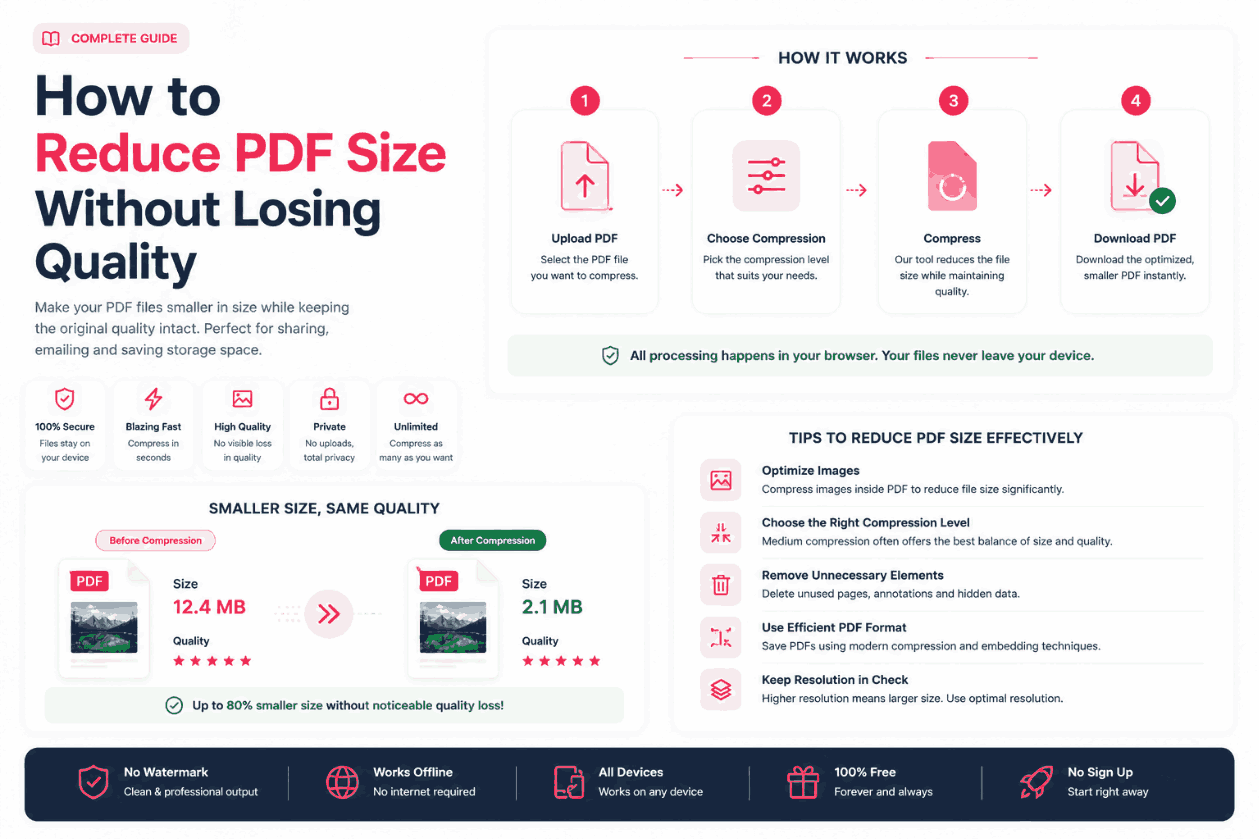
To significantly reduce a PDF file size without noticeable visual degradation, utilize a compressor that allows manual slider controls (aiming for 70-80% quality). More importantly, if the document is only meant for digital viewing, use a tool that automatically downscales the DPI to 72 or 150.
Summary
Bloated PDFs are the bane of modern communication, often resulting in bounced emails and frustrated clients. However, aggressively compressing a document can destroy the readability of text and the crispness of images. This guide details the mathematics behind image compression within PDFs, how to navigate DPI settings, and how to utilize client-side tools to find the perfect equilibrium between file size and visual fidelity.
Introduction
When you use a high-quality Image to PDF generator, the resulting document preserves the exact resolution of the original photos. While this is mathematically ideal, it often results in a 50MB file that cannot be uploaded to a corporate portal or sent via Gmail (which enforces a strict 25MB limit).
The instinct is to search for a "PDF Compressor," but many legacy tools act as a black box—they take your 50MB file and ruthlessly crush it down to 2MB, rendering the text illegible. To prevent this, you must understand how compression algorithms function.
Why PDFs Get So Large
The PDF format is merely an envelope. The weight of the envelope is entirely dependent on what you put inside it.
If you take a photo with a modern smartphone, it often contains 12 to 48 million pixels (megapixels). When embedded directly, the PDF must store the color value for every single one of those pixels. A 10-page document composed of raw smartphone images can easily exceed 80MB. Text, by contrast, is stored as scalable vector coordinates, taking up virtually zero space. Therefore, PDF compression is almost exclusively about image compression.
Lossy vs. Lossless Algorithms
| Algorithm Type | How It Works | Best Use Case |
|---|---|---|
| Lossless (e.g., PNG/ZIP) | Finds repeating mathematical patterns in the data to save space without deleting any pixels. | Documents containing sharp text, blueprints, or medical scans where zero degradation is acceptable. |
| Lossy (e.g., JPG) | Permanently deletes color data that the human eye struggles to perceive. Introduces "artifacts" at extreme levels. | Documents containing natural photographs (landscapes, portraits, scanned receipts). |
Step-by-Step Compression Guide
To maintain control over the output, follow this workflow:
- 1Use Pre-Compression: If you are building a PDF from scratch, it is often better to compress the images before compiling. Use a local tool with a quality slider.
- 2Target the 75% Sweet Spot: If adjusting JPG compression, a setting of 70% to 80% usually reduces the file size by half while remaining visually identical to the original image.
- 3Avoid Re-saving: Do not compress an already compressed file. This causes "generation loss," resulting in extreme blurriness.
- 4Compile Locally: Generate the final PDF using a client-side compiler to ensure no cloud server overrides your carefully chosen settings.
Understanding DPI Downscaling
The Golden Rule of Resolution
For Print: Maintain 300 DPI.
For Screens: Downscale to 72 or 150 DPI.
If your 10-page document is meant solely to be read on a smartphone or laptop, storing the images at 300 DPI (Dots Per Inch) is a massive waste of megabytes. A standard monitor simply cannot display that density of pixels. By running the PDF through a tool that resamples the embedded images down to 72 DPI, you can achieve an 80% reduction in file size with zero perceived loss in quality on digital displays.
Common Compression Mistakes
Compressing Text-Heavy PNGs as JPGs
If your PDF contains PNG screenshots of spreadsheets or text documents, applying aggressive JPG lossy compression will cause a halo effect (artifacting) around the letters, rendering them illegible. Always use lossless compression or downscaling for sharp geometric lines and text.
Pro Tips for Advanced Users
If you are working with extreme high-efficiency formats like HEIC or WEBP, you already have an advantage. These formats natively possess superior compression algorithms compared to legacy JPEGs. When utilizing modern compilation tools that support direct embedding, try compiling the document with the raw HEIC/WEBP files first. You may find the resulting PDF is already small enough to email without requiring any further compression steps.
Frequently Asked Questions
How do I reduce a PDF size without losing quality?
You must use a tool that employs 'lossless compression' or allows you to manually adjust the compression ratio. If the tool offers a slider, set it to roughly 70-80% quality. This slightly compresses the embedded JPGs without causing visible artifacting.
Why is my PDF file so large?
A PDF acts as a container. If you insert a 15MB 4K photograph into it, the PDF will be at least 15MB. The file size is almost entirely dictated by the uncompressed dimensions and resolution of the images inside it.
What is the difference between Lossy and Lossless compression?
Lossless compression rearranges data mathematically to save space without deleting any pixels (like a ZIP file). Lossy compression permanently deletes pixel data to achieve massive file size reductions, which causes blurriness.
Is it safe to compress confidential documents online?
No, unless you use a client-side processor. Traditional cloud compressors require you to upload the file to a remote server. A client-side processor compresses the file locally in your browser's RAM, ensuring absolute privacy.
What DPI should I use for screens vs printing?
For documents that will only be viewed on a monitor or phone, 72 to 150 DPI is sufficient. For documents that will be physically printed, you must maintain at least 300 DPI to avoid pixelation.
Can I compress a PDF that contains PNGs?
Yes, but PNG compression is generally lossless and yields smaller reductions. To achieve massive reductions, a compressor will typically convert the embedded PNG data into JPG data within the PDF structure.
Conclusion
File compression is a delicate balance between conserving bandwidth and preserving professionalism. By understanding the difference between lossy and lossless algorithms, and leveraging DPI downscaling appropriately, you can ensure your documents remain sharp and legible.
Always opt for client-side processing tools. Use the PDFChacha engine to pre-format and compile your documents locally, granting you absolute control over the final file size and visual fidelity.